Your First 10 Minutes with Claude.ai: A Tradesperson's Quick-Start Guide
Most people try Claude.ai once, get a vague answer and give up. That is a prompting problem, not a Claude problem. This post gets you set up and producing useful output in your first session, including three working prompts you can use this week.



Series: Claude.ai for Tradespeople | Post 2 of 12
Most people try Claude.ai once, type something vague, get a vague answer, and conclude it's not for them. That's not a Claude.ai problem that's a prompting problem. And it's fixed in about five minutes once you understand how it works.
This post gets you set up and producing useful output within your first session. By the end, you'll have three working prompts you can copy, adapt, and use this week.
Step 1: Create Your Account (3 Minutes)
Go to Claude.ai on your phone or computer. Click Sign up and register with your email address or Google account. The free tier gives you immediate access no card required.
Once you're in, you'll see a simple chat interface. A text box at the bottom. That's it. There's no dashboard to learn, no settings to configure. You just type.
Step 2: Understand Why Vague Prompts Get Vague Results
Claude.ai is not a search engine. When you type "write me a quote," it has no idea what trade you're in, what the job involves, who the customer is, or what your pricing looks like. So it produces something generic that's no use to anyone.
The fix is simple: give it the context it needs to do the job properly.
Here's the difference in practice.
Vague prompt (poor output):
Prompt: "Write me a quote for a bathroom job."
Specific prompt (useful output):
Prompt: "I'm a self-employed plumber based in Leeds. I've just surveyed a bathroom refurbishment job for a residential customer. The work involves removing and disposing of the existing suite, installing a new toilet, basin, and shower tray supplied by the customer, re-tiling the floor and half the walls, and upgrading the isolation valves. Labour will take approximately 4 days. I charge £350 per day. Write me a professional quotation I can send to the customer, including a clear scope of works and a line for exclusions."
Same tool. Completely different output. The second prompt takes 90 seconds to write and produces something you can send or send with minor edits.
The Prompt Formula Every Tradesperson Needs
You don't need to be a writer to use Claude.ai well. You just need to include four things:
- Who are you - your trade and location
- What the job is - the specifics of the task
- What you need - the output format (quote, email, job sheet, etc.)
- Any constraints - tone, length, specific inclusions
Once this becomes habit, you'll get consistently strong output every time.
Step 3: Three Starter Prompts — Copy and Adapt
These are built on the formula above. Change the specifics to match your trade and job.
PROMPT 1 - Quote from Site Notes:
Prompt: "I'm a self-employed electrician based in Bristol. I've just surveyed a job at a 3-bed semi where the customer wants a full consumer unit upgrade, replacement of 6 double sockets, and the installation of 2 outdoor weatherproof sockets. Labour will take approximately 2 days. My day rate is £400. Write me a professional quotation with a clear scope of works, a note that all work will be certificated under Part P, and a standard payment terms clause (50% upfront, balance on completion)."
PROMPT 2 - Follow-Up Email After a Visit:
Prompt: "I'm a self-employed builder based in Manchester. I visited a customer yesterday to discuss a single-storey kitchen extension. The meeting went well. I need to follow up by email to confirm I'll get them a written quote within 3 working days and to thank them for their time. Keep the tone professional but friendly. My business name is Hartley Building Services."
PROMPT 3 - Response to a Difficult Message:
Prompt: "A customer has sent me this message: [paste the message here]. I'm a decorator. The job is finished and the invoice has been outstanding for 3 weeks. Help me write a firm but professional reply that requests payment within 7 days and notes that I may need to escalate to a debt recovery service if payment isn't received."
Step 4: The One Setting Worth Knowing - Custom Instructions (Pro Feature)
If you upgrade to Claude Pro, you can set persistent instructions so you don't have to repeat your background every time. Something like:
Prompt: "I am a self-employed plumber based in Birmingham trading as Davies Plumbing & Heating. I specialise in domestic work — boilers, bathrooms, and general plumbing repairs. My day rate is £380. I use British English and want all customer communications to be professional but approachable."
Every response Claude.ai gives you will then be calibrated to your business without you having to re-explain it. For the free tier, it's worth keeping a saved note on your phone with this context so you can paste it in quickly at the start of each session.
What to Expect in Your First Week
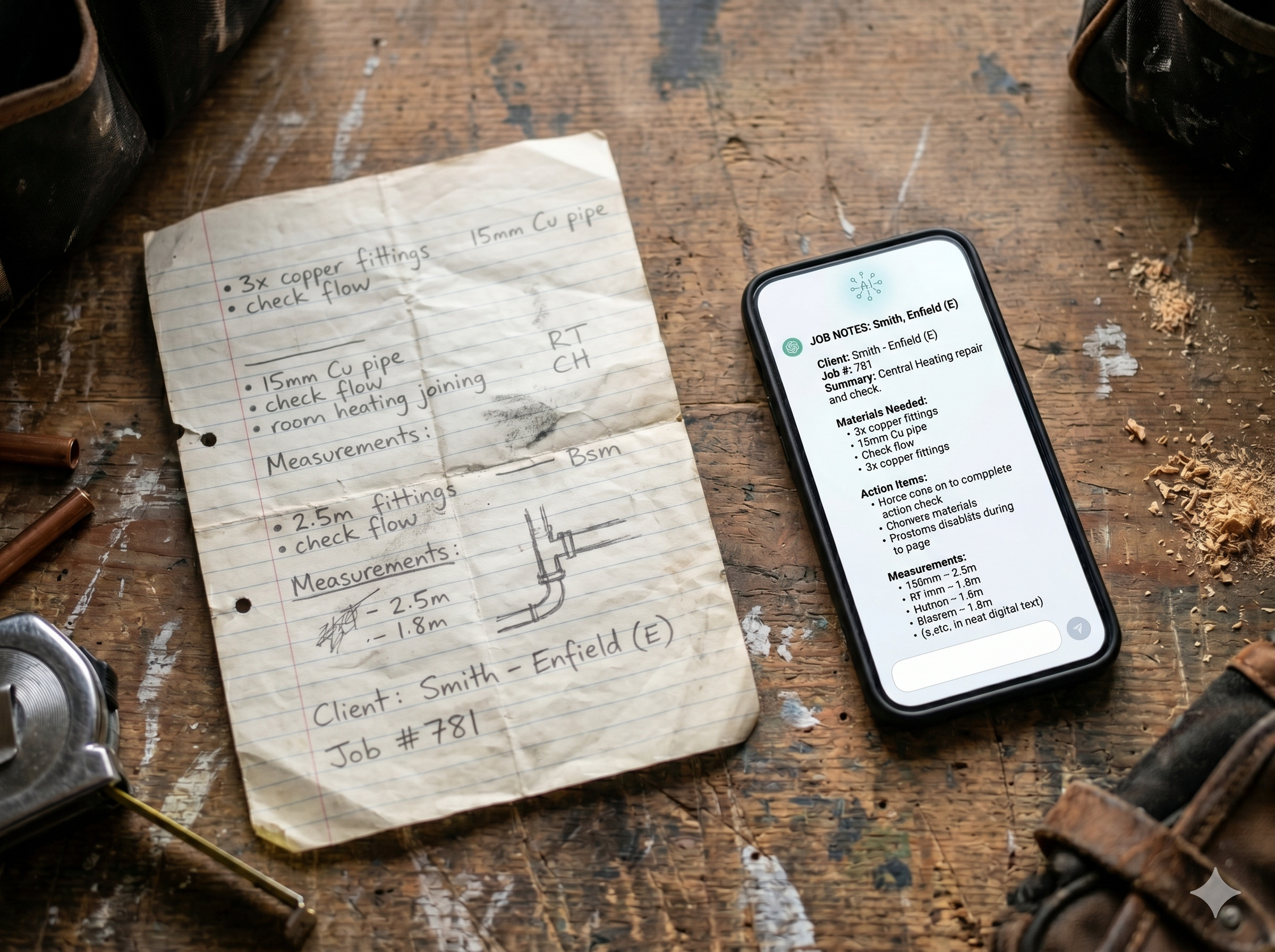
Don't try to automate your entire business on day one. Use Claude.ai for one specific task this week - a quote you've been putting off, an email you're not sure how to word, a job description you need to write.
Get one solid win under your belt. That's what builds the habit.
The tradespeople who get the most from Claude.ai aren't the ones who use it for everything at once. They're the ones who started with one use case, saw the result, and kept adding.